
Finding Android APK files online has become common among users who want apps that are unavailable on Google Play or need an older version. However, not every website offering an APK is trustworthy. Some websites use misleading download buttons, fake app versions, aggressive redirects, or modified files that may put a user’s device and personal information at risk.
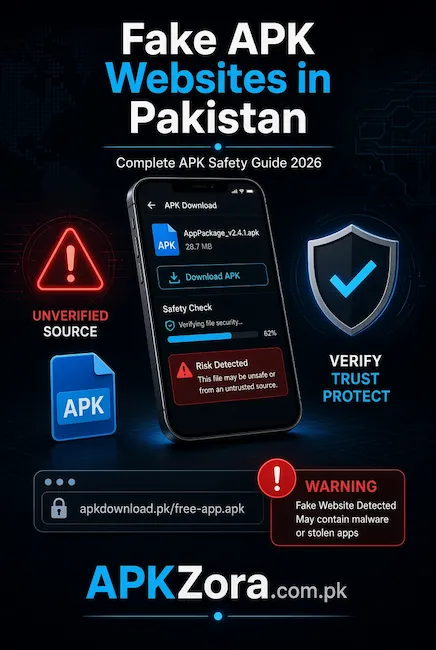
For Pakistani Android users, knowing how to identify fake APK websites is especially important before downloading or installing any application. This guide explains the common warning signs, safer downloading practices, and simple checks that can help users make more informed decisions.
What Are Fake APK Websites?
Fake APK websites are websites that distribute misleading, modified, suspicious, or potentially harmful Android application files. A website may use the name and logo of a popular app while providing a different file, an outdated version, or an APK modified by an unknown party.
A professional-looking website does not automatically mean that its APK files are safe. Users should check the source, app information, permissions, download behavior, and security warnings before installing anything.
Google recommends getting Android apps from Google Play when possible, while also warning that apps downloaded from unknown sources can put devices and personal information at risk.
Common Signs of a Fake APK Website
One of the easiest ways to recognize a suspicious APK website is to look at its overall download process. If a page contains several fake download buttons, unexpected redirects, automatic downloads, or repeated pop-ups, users should stop and review the source before continuing.
Another warning sign is an APK advertised as a “premium,” “mod,” or “unlocked” version without clear information about where the file came from. Excessive claims about guaranteed benefits can also be a reason to investigate further rather than installing immediately.
A trustworthy-looking website should provide useful information such as the app name, version, file size, Android requirements, update information, and installation guidance.
Check the APK Before Installing
Before opening an APK file, check whether the filename and version match the information provided on the download page. If the website claims to offer one application but the downloaded file has a completely different name, package information, or unexpected size, avoid installing it.
Android’s built-in security system can also help. Google Play Protect checks apps during installation and periodically scans installed applications, including apps obtained from sources outside Google Play. It can warn users, disable harmful apps, or remove them when necessary.
Be Careful With App Permissions
Permissions deserve special attention when installing an APK from an external source. An app should not normally require access that appears unrelated to its advertised purpose.
For example, an ordinary utility may not have an obvious reason to request extensive access to messages, notifications, contacts, or other sensitive information. Unexpected permission requests should be treated as a warning sign.
Google also notes that potentially harmful applications can misuse sensitive permissions and may be associated with risks such as financial fraud.
How APKZora Approaches APK Information
At APKZora, the goal is to provide useful Android APK information in a clear and understandable format. Instead of encouraging users to install an application without checking it, our guides focus on version details, installation steps, features, requirements, and basic safety considerations.
Users should still perform their own checks before installing any APK, especially when the application comes from outside Google Play. APKZora does not recommend ignoring Android security warnings or disabling protection simply to install an application.
Keep Google Play Protect Enabled
Google Play Protect is one of the most useful built-in security features available on Android devices. It checks applications for potentially harmful behavior and can warn users when an application appears unsafe.
Google recommends keeping Play Protect enabled. Users can check its status through the Google Play Store by opening Profile → Play Protect → Settings and making sure app scanning is active.
What to Do If an APK Looks Suspicious
If an APK suddenly shows unusual advertisements, redirects, unexpected permission requests, or strange device behavior after installation, do not ignore the warning signs. Uninstall the suspicious application and run a security check.
Google lists symptoms such as persistent pop-ups, unusual browser redirects, unexplained device slowdown, and other unexpected behavior among possible signs of unwanted or harmful software.
It is also important to keep Android and security updates current because updates can provide important security improvements.
Final Thoughts
Fake APK websites can make an unsafe download appear legitimate through attractive pages, familiar app names, and misleading download buttons. The safest approach is to verify the source, check the APK information, review permissions, keep Google Play Protect enabled, and avoid files that generate serious security warnings.
APKZora aims to make APK information easier to understand by providing practical guides rather than encouraging careless installations. Whether you are searching for a new Android app or an older APK version, taking a few minutes to verify the source can help protect your device, data, and online accounts.